How to Watch Multiple YouTube Live Streams at Once
Several browser tabs can work for two streams, but they stop working well at four. Here is how to follow multiple YouTube live streams in one view, and what to expect from audio, devices and embedding limits.
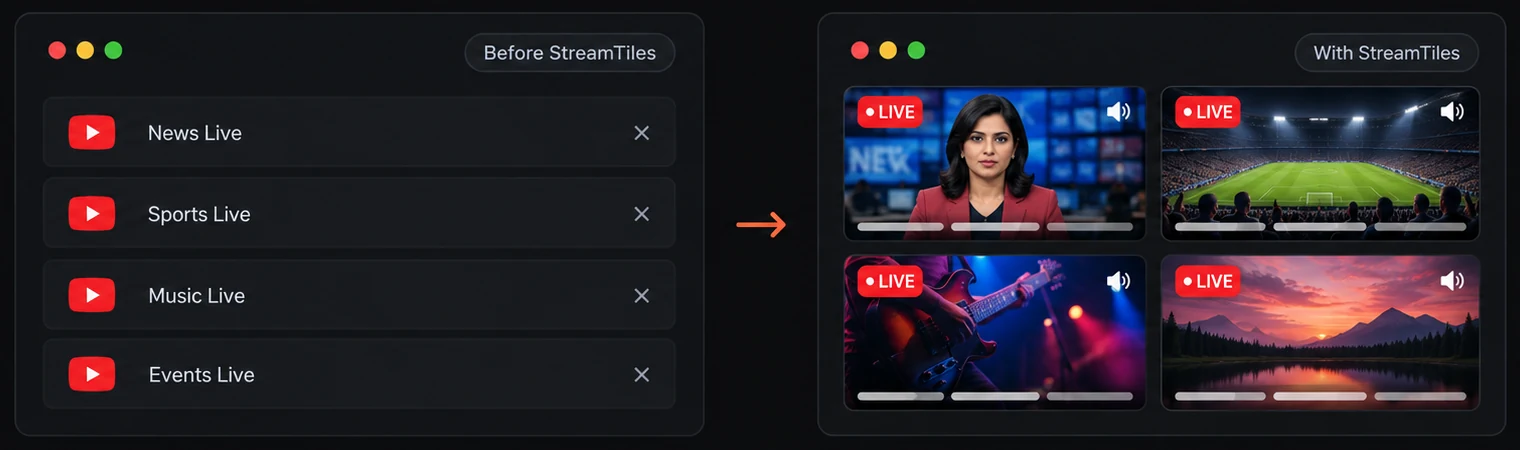
If you want to watch more than one YouTube live stream at the same time, the quickest answer is this: put the streams in a single page, give each one its own tile, and keep only one of them audible. You can do that by hand with browser windows, or you can use a multi-stream viewer such as StreamTiles, which holds up to six streams in one view. The rest of this guide explains when each approach makes sense, how to set it up, and where the limits are.
This guide uses YouTube live streams as its example. StreamTiles also accepts Twitch channel links, and you can mix both platforms in the same grid; see watching YouTube and Twitch streams together for how that works and what differs between the two.
Why people follow several live streams at once
Live video is different from a normal upload because it is happening now, and the interesting moment is not predictable. That is why people want more than one window open. The common situations are:
- Breaking news and developing stories. Different broadcasters decide differently what to show and when, so watching several side by side shows you how the coverage differs.
- Live events. A conference, a launch or a sports build-up can have an official broadcast, a commentary stream and a regional feed running at once.
- Educational and public broadcasts. Lectures, council meetings and space-agency or observatory feeds are often streamed by more than one organisation.
- Weather and public cameras. Several locations at a glance is more useful than refreshing one.
- Ambient viewing. A wall of calm streams on a second monitor, with one of them audible.
What goes wrong with multiple browser tabs
Opening each stream in its own tab is the obvious first attempt, and for two streams it is fine. By the third or fourth it starts to hurt, for reasons that are easy to recognise:
- You can only see one tab at a time, so you are always choosing which stream to ignore.
- Every tab carries the full YouTube page, with comments, recommendations and a video you did not mean to start. The stream is a small part of what you are looking at.
- You lose track of which tab is which, and finding the one that is making noise means clicking through all of them.
- Browsers may reduce activity in background tabs, so a stream you cannot see is not always one you can rely on.
Putting windows side by side helps, but then you are resizing and aligning them by hand every time. A viewer that treats each stream as a tile solves the layout problem directly.
Organising streams in one viewing space
The idea behind a multi-stream viewer is simple: it uses YouTube's embedded player, which is the same player that appears on other websites, and arranges several of them on one page. The video is still delivered by YouTube. The viewer provides the layout and the controls around the players.
StreamTiles works this way. It offers three layouts: Grid gives every stream equal space, Focus enlarges one stream with the others alongside it, and Cinema keeps one main stream large with the rest in a strip. The first stream in your list is the large one in Focus and Cinema, and you can reorder streams by dragging them or with the move buttons on each tile.
Step by step: watch several live streams with StreamTiles
- Collect your links. Open each live stream on YouTube and copy its address. A standard watch link, a
youtu.belink and ayoutube.com/live/…link all work. - Open the viewer. Go to the StreamTiles viewer and choose Add a live stream. If you are on a computer, pressing the A key does the same thing.
- Paste the first link and choose Add stream. The stream appears as a tile. Repeat for each stream, up to six. Adding the same stream twice is not allowed.
- Allow third-party content if asked. Depending on your privacy choices, a tile may show a short notice and an Allow YouTube and Twitch content button instead of a player. Nothing is requested from YouTube or Twitch until you allow it, and you can change your choice later under Privacy Settings in the footer.
- Pick a layout. Switch between Grid, Focus and Cinema from the toolbar. Grid is the easiest place to start.
- Set the audio. Streams start muted. Unmute the one you want to hear. The reasons are covered below.
- Share it if you need to. The Share button copies a link containing the video IDs of your streams, so someone else can open the same set. It does not carry your layout or volume settings.
Your set of streams is saved in your browser on that device, so it is there the next time you open the viewer. It is not tied to an account and it does not sync between devices.
How many streams is the right number?
StreamTiles caps a workspace at six streams, and that is a ceiling, not a target. A practical way to choose:
| Streams | Works well for | Watch out for |
|---|---|---|
| 2 | Comparing two broadcasts, or a main stream plus a reference feed | Almost nothing; this is the easy case |
| 3–4 | Following one story from several sources, or a few events at once | You will want to mute most tiles and rely on one for sound |
| 5–6 | Monitoring: you glance at tiles rather than watch each one | Small tiles on a laptop screen, and a heavier load on the device |
If you find yourself squinting, remove a stream or switch to Focus so one stream is large. A smaller number you actually follow is more useful than six you cannot read.
Managing audio so streams do not talk over each other
Sound is the real constraint on multi-stream viewing. Two people talking at once is noise, and a human listener can follow one voice at a time. A few habits make this manageable:
- Start muted and unmute deliberately. Browsers generally block autoplay with sound, so StreamTiles starts every stream muted. Treat that as a feature: you decide which stream gets your ears.
- Turn on Audio focus. In Settings, Audio focus mutes the other streams whenever you unmute one. It is off by default, so you can still run two streams at different volumes if you want to.
- Use the per-stream volume. Each tile has its own mute button and volume slider, and the global controls can mute everything at once.
- Use a visual cue instead of sound for streams you only need to monitor. A tile on mute that you glance at is often enough. StreamTiles hides YouTube's own player controls, so caption and quality settings may not be available in a YouTube tile; if you need captions for a stream, open it on YouTube.
Desktop and mobile are different experiences
On a desktop or laptop with a large screen, a four- or six-tile grid is readable. On a phone, the layout adapts to the narrow screen so each video stays usable, but the practical number of streams you can follow is much lower. Mobile browsers also tend to restrict autoplay and background playback, which means a stream may not keep playing if you switch apps or lock the screen. For mobile, two streams is a sensible limit; the desktop and mobile setup guide has the detail.
Browser performance and bandwidth
Each live stream is its own video that your device has to download and decode. Six at once asks for noticeably more network capacity and processing than one. Quality is usually adjusted by YouTube's player to the connection, but there is no guarantee, and older laptops and phones can struggle. If things stutter, the fixes are the boring ones: close other tabs and heavy applications, reduce the number of tiles, and pause streams you are not watching. Multi-stream bandwidth and data usage explains what drives the load.
When a stream will not play
Not every YouTube stream can be shown outside YouTube. The owner of a video decides whether it may be embedded, and YouTube applies its own rules on top. A tile can show an error for several reasons:
- The owner has disabled embedding.
- The video is private, has been removed, or is age-restricted or otherwise limited.
- The broadcast has ended. A live stream link points to one specific broadcast, so when a channel ends it and starts a new one, the new broadcast usually has a different link.
- Your network, browser or an extension is blocking the player.
StreamTiles shows a message on the affected tile, with options to open the stream on YouTube or remove it, and the other tiles keep playing. It does not replace a stream automatically, and it cannot get around an owner's embedding choice. YouTube does not always say why a video will not play, so opening it on YouTube is the quickest way to find out. To check a link before adding it, use the YouTube Live Stream Embed & Compatibility Tester, which loads the same kind of embedded player and reports what it sees. A passing result is an indication, not a promise, because availability can change at any time.
If you publish your own streams and want them to be embeddable, the YouTube embed guide explains how embeds work and where they fail. If you only need an embed URL or iframe code, you can generate a YouTube embed URL directly.
Ready-made sets to start from
If you would rather not collect links yourself, browse StreamTiles viewing templates. Each template opens a set of six live streams together. Malayalam News Live groups six Kerala news channels, Indian News Live groups six Indian news channels, and Lo-fi & Study Live groups six music and ambience streams. You can change a stream inside a template for your current visit, but changes are not saved, and reopening the template restores the original set.
Privacy and responsible use of third-party content
StreamTiles does not host, own or control the streams it displays. They come from YouTube and from the channels that publish them, and they can disappear or change without notice. StreamTiles is an independent service and is not affiliated with YouTube or Google. When a player loads, your browser connects to YouTube, which may use cookies or similar technologies under its own policies. How StreamTiles handles third-party content explains this in more detail. As a viewer, respect the rules of the channels you watch, and do not rebroadcast or record someone else's stream unless they allow it.
Frequently asked questions
Can I watch two YouTube live streams on one screen without installing anything?
Yes. A browser-based viewer needs no installation. You paste the stream links, and the streams play in tiles on one page.
How many live streams can StreamTiles show?
Up to six at once. The limit is built into the viewer, and a smaller number is usually easier to follow.
Why is every stream muted when I add it?
Browsers generally block autoplay with sound, so streams start muted. Unmute the one you want to hear, or turn on Audio focus in Settings so unmuting one mutes the others.
Will every YouTube live stream work?
No. A stream whose owner has disabled embedding, or one that is private, removed or restricted, will not play in a viewer. The tile shows a message and you can open the stream on YouTube instead.
Does the stream restart if the channel goes live again?
No. Each tile is tied to one specific broadcast link. If a channel starts a new broadcast under a different link, add the new link yourself.
Conclusion
Following several live streams is mostly a layout and audio problem. Tabs solve neither well; a single view with a limited number of tiles and one deliberate audio source solves both. Start with two or three streams, choose the layout that keeps the important one readable, and treat playback problems as a property of the stream, not of your setup. When you are ready, try StreamTiles with your own streams, or read how the same approach applies to watching several videos together and to following live news from several channels.