How to Watch Twitch and YouTube Streams Together
A Twitch channel and a YouTube live stream can share one viewing grid. Here is how to add each, how the two players differ, and what to check when one of them will not play.
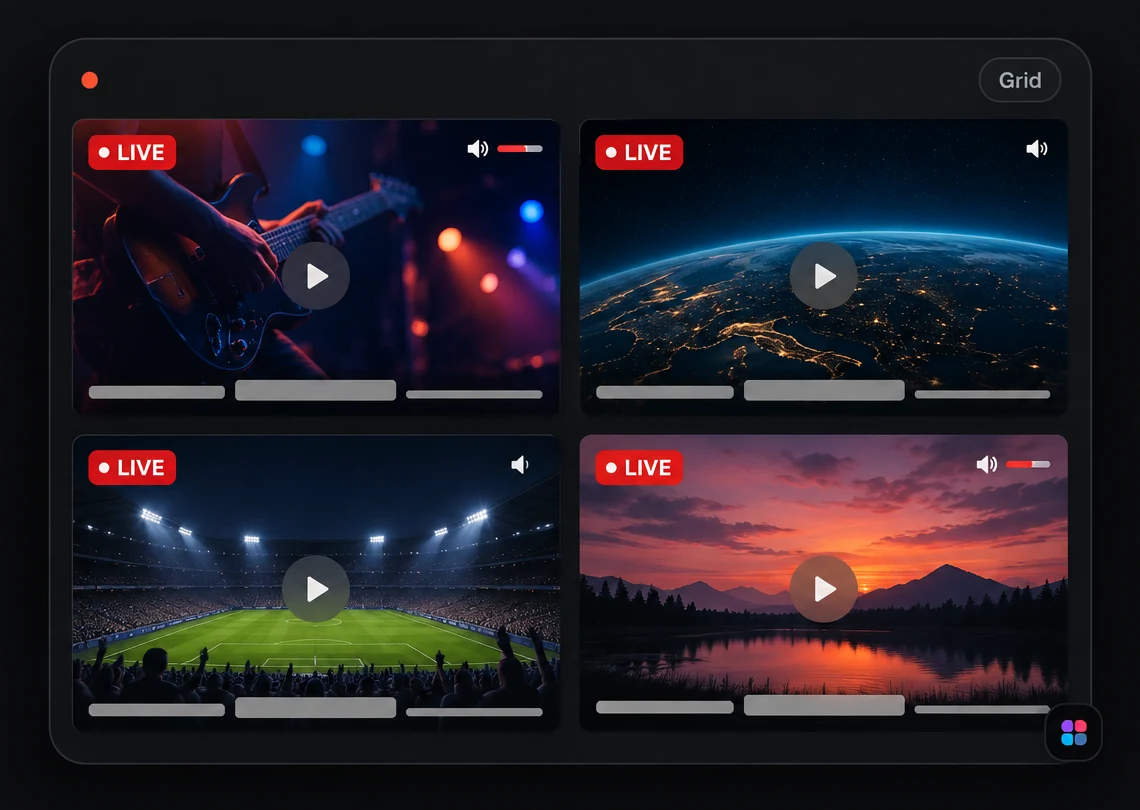
You can watch a Twitch channel and a YouTube live stream at the same time by putting both in one multi-stream viewer: paste a YouTube link and a Twitch channel link into the same grid, choose a layout, and decide which tile gets your audio. StreamTiles supports exactly this. Each stream is the platform's own embedded player, so YouTube and Twitch still deliver the video, and StreamTiles supplies the layout and the controls around the players.
This guide is about the practical side of a mixed grid: what you can add, how the two kinds of tile behave differently, and what to do when one of them does not load. For an overview of the feature itself, see the StreamTiles multi-stream viewer page.
Why people combine Twitch and YouTube
Different broadcasters choose different platforms, so the things you want to follow side by side are often split between the two. Common situations include:
- Gaming and esports. A tournament may have an official broadcast on one platform while individual players or commentators stream on the other.
- Live events and launches. An organisation may stream on YouTube while a community host reacts to it on Twitch.
- Creator coverage. If the people you follow are not all on the same platform, a grid lets you check on several of them without switching sites.
- Commentary next to the source. A reaction or analysis stream beside the broadcast it discusses.
- Research and monitoring. Keeping a few channels visible while you work, and turning to the one that gets interesting.
None of these needs the platforms to cooperate with each other. The viewer only needs each stream to be something the platform allows to be embedded.
What you can add, and what you cannot
| Platform | Works | Does not work |
|---|---|---|
| YouTube | A live stream or video link: a standard watch link, a youtu.be link or a youtube.com/live/… link | Private or removed videos, and videos whose owner has disabled embedding |
| Twitch | A live channel link such as twitch.tv/channelname | Videos (VODs), clips, and other Twitch pages such as the directory or settings |
| Anything else | Nothing | Other streaming platforms are not supported |
The limit is six streams in total, and YouTube and Twitch tiles count together. Adding the same stream twice is not allowed. StreamTiles shows the player only, so Twitch chat is not part of a Twitch tile.
Step by step: build a mixed grid
- Open the viewer. Go to the StreamTiles viewer and choose Add stream. On a computer, pressing the A key opens the same dialog.
- Paste a YouTube link. Any supported YouTube live or video link works. The stream appears as a tile.
- Paste a Twitch channel link. Choose Add stream again and paste something like
twitch.tv/channelname. You do not have to say which platform it is. - Keep adding in any order. Tiles are placed in the order you added them, whichever platform they are from.
- Allow third-party content if asked. Depending on your privacy choices, a tile may show a notice and an Allow YouTube and Twitch content button instead of a player. One choice covers both platforms, and nothing is requested from either until you allow it.
- Pick a layout and set the audio. Every stream starts muted. Unmute the one you want to hear.
Your grid is saved in your browser on that device. The Share button copies a link that reopens the same set of streams in the same order. It does not carry your layout or volume settings.
How StreamTiles tells the two platforms apart
You never choose a platform from a menu. StreamTiles reads the link you paste: a YouTube address becomes a YouTube tile, and a link on the twitch.tv domain is checked as a Twitch channel. The check is strict. The address has to belong to the real YouTube or Twitch domain, so a look-alike address is rejected, and a Twitch link has to point at a channel rather than at a video, a clip or another page.
If a link is not accepted, the dialog says why in plain words, for example that a Twitch video or clip cannot be added. That is useful when a link looks right but belongs to a different kind of page, because the address of a Twitch clip or past broadcast is easy to mistake for a channel. If you only need to confirm that a YouTube link will play in an embedded player before you add it, the YouTube live stream embed tester does that. There is no equivalent tool for Twitch.
Arranging a mixed grid
The three layouts work the same way whichever platforms are in the grid. Grid gives each stream equal space, Focus makes the first stream large with the others alongside it, and Cinema keeps a wide main stream with the rest in a strip. Drag tiles, or use the move buttons where a tile shows them, to change which stream is first.
A practical arrangement is to put the stream you care about most first and use Focus or Cinema, so it gets the most pixels, and let the rest act as monitors. If you have no clear favourite, start with Grid and two or three streams. Our guide to watching multiple YouTube live streams at once explains how to choose a stream count, and the same advice applies to a mixed grid.
Why a Twitch tile looks a little different
Twitch asks embedders to keep its player unobscured and does not let them hide its controls. So StreamTiles puts a Twitch tile's own controls in a strip underneath the player instead of over the video, and the player itself stays clickable. Twitch also expects its player to be at least 400 by 300 pixels. In a smaller tile, StreamTiles lays the player out at that minimum and scales it down to fit, which makes Twitch's own text and buttons look smaller than on a YouTube tile.
Audio: where the two players differ
Sound is the real limit of any multi-stream view, and the basics are the same for both platforms. Every tile has its own mute button and volume slider, a Mute all button silences everything, and Audio focus in Settings mutes the other tiles whenever you unmute one. It is off by default.
The differences are worth knowing:
- Twitch shows its own controls inside its player. They are not synchronised with StreamTiles' controls, so use one set or the other for a given tile. Changing the volume inside Twitch's player does not move StreamTiles' slider.
- A browser can refuse to unmute. If a browser blocks unmuting a player that started on its own, the tile goes back to muted rather than showing a volume that is not playing.
- Streams are not synchronised with each other. Two broadcasts of the same event can be a few seconds apart, and StreamTiles does not line them up.
Desktop and mobile
On a computer, tiles share the screen according to the layout you choose. On a phone they stack in a single column and the page scrolls, so six streams fit without being squeezed, though following more than two or three is hard on a small screen. Mobile browsers also restrict autoplay and background playback, so a stream may need a tap, and may stop when you switch apps. The desktop and mobile setup guide goes through both cases in more detail.
Why a stream will not play
Whether a stream can be embedded and played is decided by its owner and by the platform, not by StreamTiles, and StreamTiles does not work around those decisions. The usual causes are different on each platform.
YouTube tiles
A tile can show Stream ended or Playback unavailable here when the broadcast has finished, the video is private or removed, or its owner has disabled embedding. The tile offers to open the stream on YouTube or remove it, and the other tiles keep playing. The YouTube embed errors guide covers the causes in detail.
Twitch tiles
A channel that is not live shows Twitch's own offline screen and is marked OFFLINE in the tile. That is not an error. A player that cannot load at all shows Unable to load stream with a Try again button, and StreamTiles does not claim in that case that the channel is offline, because Twitch's player reports very little about why it failed. Twitch's own requirements for embedding are explained in the Twitch embed guide, and are set out in Twitch's embedding documentation (opens in a new tab).
Performance with two kinds of player
Each tile is a live video that your device downloads and decodes, and a mixed grid is no exception. Six at once ask much more of a processor and a connection than one, and the amount differs from stream to stream. Start with two or three streams and add more only if playback stays smooth. Close other tabs and heavy applications if it stutters. The Twitch player script is loaded only when a Twitch stream is actually in your grid, and neither platform's player is requested until you allow third-party content. How much bandwidth multi-stream viewing uses explains what drives the load.
Frequently asked questions
Can I put a Twitch stream and a YouTube stream in the same grid?
Yes. Add a YouTube link and a Twitch channel link one after the other. Each gets its own tile, and the six-stream limit counts both platforms together.
Can I add a Twitch video or clip?
No. StreamTiles accepts live Twitch channels only. If you paste a video or clip link, the dialog tells you it cannot be added.
Why does a Twitch tile have its controls underneath?
Twitch asks that its player not be covered by other elements, so StreamTiles puts that tile's controls in a strip below the player instead of over it.
Will every Twitch and YouTube stream work?
No. A private or removed YouTube video, a YouTube owner who has disabled embedding, or a Twitch channel that Twitch will not play in your browser can all fail. StreamTiles shows a message on that tile and the others keep playing.
Are the streams kept in sync?
No. Each player runs on its own, so two broadcasts of the same event can be a few seconds apart.
Conclusion
Watching Twitch and YouTube together is mostly an arrangement and audio problem. Add the streams you care about, put the most important one first, and keep one tile audible. Expect small differences between the two players, such as the control strip under a Twitch tile and Twitch's separate on-player controls, and treat a tile that will not play as a property of that stream rather than of your setup. When you are ready, open StreamTiles and try it with your own streams, or read how the viewer handles following live news from several channels.