How to Set Up a Multi-Stream Viewer on Desktop and Mobile
The same set of streams behaves very differently on a large monitor and on a phone. Here is how to choose a stream count, layout and audio plan for each, and what to do when a tile is clipped or will not play.
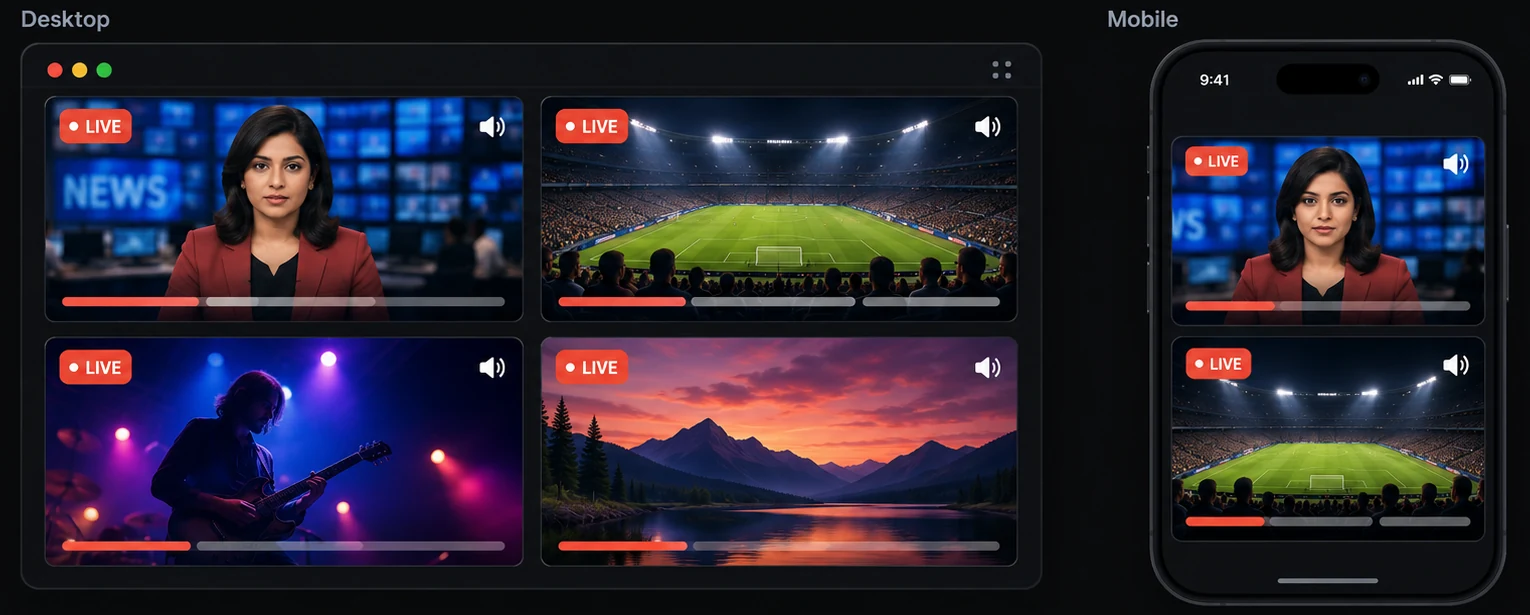
Set up a multi-stream viewer by deciding two things first: how many streams your screen can show legibly, and which one you will listen to. On a desktop or laptop, that is usually two to four streams in a grid. On a phone, it is one or two at a time, because StreamTiles stacks the tiles in a single column and you scroll between them. The rest of this guide turns that into concrete steps for each kind of device.
StreamTiles is a website that runs in your browser, on a computer or a phone. It is not a native app, so what follows depends on your browser as well as your device. The examples assume you are using YouTube and Twitch streams, which the viewer supports.
Choose the number of streams first
The limit in StreamTiles is six streams, but that is a ceiling. The useful number depends on the screen and on how you plan to watch.
| Device | Comfortable | Possible, but for glancing |
|---|---|---|
| Phone | 1 to 2 streams | 3 or more, scrolling between them |
| Tablet | 2 to 3 streams | 4 streams in a grid |
| Laptop | 2 to 4 streams | 5 to 6 streams, small tiles |
| Large monitor or two screens | 4 to 6 streams | Limited by your connection and processor rather than the screen |
These are starting points, not measurements. Your eyesight, viewing distance and the kind of stream all matter: a news broadcast with a ticker needs more pixels than a calm ambient scene. If you are unsure, start with two streams and add one at a time.
Setting up on a desktop or laptop
- Open the viewer at the StreamTiles viewer and choose Add stream. Pressing A opens the same dialog.
- Add the main stream first. In the Focus and Cinema layouts, the first stream in your list is the large one. You can drag tiles, or use the move buttons where a tile shows them, to change the order later.
- Add the others. Paste a YouTube link or a Twitch channel link for each. The two platforms can be mixed, and both count towards the six-stream limit.
- Pick a layout. Switch between Grid, Focus and Cinema from the toolbar and see which keeps the important stream readable.
- Set the audio. Streams start muted. Unmute one, or turn on Audio focus in Settings so that unmuting one mutes the rest.
Desktop layouts
On a wide screen, the viewer works out how many columns and rows give the biggest 16:9 tiles for the space available, so the arrangement changes with the window size as well as the number of streams. Resizing the browser window, or switching between a full-screen window and a half-width one, therefore changes how large each tile is.
- Grid gives every stream equal space and is the best default for two to four streams of equal importance.
- Focus makes the first stream large, with the others alongside it. It suits one main stream plus a few monitors.
- Cinema keeps a wide main stream with the rest in a strip, which works well on a wide monitor and when five or six streams are in play.
If you have two monitors, one practical arrangement is to keep a large single stream or a Focus layout on one and use the other for something else. The viewer lives in one browser window, so you place that window where you want it. The keyboard shortcuts for the focused stream are Space to play or pause, M to mute and F for fullscreen.
Setting up on a phone
On a narrow screen the tiles stack in one column and the page scrolls, so every video stays full width and nothing is squeezed into a corner. Six streams technically fit this way, but you see one or two at once and scroll for the rest. That is a different way of watching, closer to flicking between channels than to a wall of screens.
- Keep the list short. Two streams is a sensible limit. Add more only if you plan to scroll between them.
- Put the one you want to hear near the top. The first stream is the first you see.
- Tap to start if needed. Mobile browsers restrict autoplay, so a stream may need a tap before it plays.
- Unmute deliberately. Every stream starts muted, and a phone has one speaker, so listen to one.
- Try fullscreen for the stream that matters. Each tile has a fullscreen button, but whether a phone browser allows it varies, so be ready to fall back to scrolling.
Mobile browsers also tend to pause or throttle video when you switch apps or lock the screen, so a viewer is for watching with the screen on, not for listening in the background.
Screen size and aspect ratio
Streams are normally 16:9, and the viewer keeps tiles at that ratio rather than stretching or cropping them. Empty space around a tile usually means the screen's shape does not divide neatly by the number of streams. A portrait phone suits a single column, and a wide monitor suits several columns. Five streams on a screen that divides evenly into four or six can leave a gap; adding or removing one stream changes the arrangement.
Twitch is the exception to a simple rule of thumb. It asks for its player to be at least 400 by 300 pixels. In a smaller tile, StreamTiles lays the Twitch player out at that minimum and scales it down to fit, so its text and controls appear smaller than on a YouTube tile. On a phone this is more noticeable.
Managing audio on either device
The audio habits are the same on every device. Start muted, unmute one stream, and use Mute all when you want silence. Turn on Audio focus if you tend to forget which tiles are on. Each tile has its own volume slider, and Twitch tiles show Twitch's own controls inside the player too. Those controls are not synchronised with StreamTiles' controls, so use one set for a given tile. If a browser refuses to unmute a player, the tile returns to muted.
Performance, battery and data
Each tile is a live video that your device downloads and decodes. On a phone that means a faster-draining battery and more mobile data, and both rise with every tile you leave playing. On a laptop it means fans and heat. The cheapest fix is to pause or remove the streams you are not watching. A separate guide explains how much bandwidth multi-stream viewing uses and why resolution and frame rate matter. On a mobile connection, Wi-Fi is the safer choice when you want more than one stream.
Troubleshooting clipped or unavailable players
- A tile looks too small. Remove a stream, or switch layout so the one you care about is large. Browser zoom changes tile sizes too.
- A tile shows a message instead of video. The stream may have ended, be private, or have embedding turned off by its owner. The tile offers to open the stream on its own platform or to remove it, and the others keep playing.
- A Twitch tile says OFFLINE. The channel is not live. This is not an error, and the tile will keep showing Twitch's own offline screen.
- A tile says Unable to load stream. Check your connection and press Try again. Content blockers and privacy extensions can stop players from loading.
- Nothing plays until you tap. A browser or privacy setting is waiting for you. Look for the Allow YouTube and Twitch content button on the tile.
If a YouTube stream will not play, the YouTube embed errors guide goes through the likely causes. You can also test a YouTube link before adding it with the YouTube live stream embed tester.
Accessibility and touch controls
Tile controls are labelled buttons and sliders, which helps with screen readers and with keyboard navigation on a computer. Some limits apply: dragging tiles needs a pointer, so the move buttons are the keyboard alternative where a tile shows them; the smaller tiles in Focus and Cinema show a reduced set of controls; and StreamTiles hides YouTube's own player controls, so caption and quality settings may not be available in a YouTube tile. On a touch screen the controls are tap targets, so a very small tile is also hard to operate; use fewer streams, or fullscreen the one you want where your browser allows it. If motion or a busy screen is tiring, use fewer tiles and keep most of them paused.
Frequently asked questions
Is there a StreamTiles app for my phone?
No. StreamTiles is a website that you open in your phone's browser. It does not require an account.
How many streams should I use on a phone?
One or two is comfortable. The viewer stacks tiles in one column and the page scrolls, so more are possible, but you see only one or two at a time.
Will streams keep playing if I lock my phone?
Do not count on it. Mobile browsers often pause or throttle video when you switch apps or lock the screen.
Why is there empty space around some tiles?
Tiles keep a 16:9 shape rather than stretching, so a screen whose shape does not divide evenly by the number of streams leaves gaps. Adding or removing a stream changes the arrangement.
Conclusion
Setting up a multi-stream viewer is mostly a matter of matching the number of streams to the screen and keeping one source of sound. Use a grid or Focus layout with two to four streams on a computer, keep to one or two on a phone, and pause anything you are not watching. When a tile fails, read the message on it before changing anything else. To go further, read what a multi-stream viewer is and when it helps, or try StreamTiles on your own device.